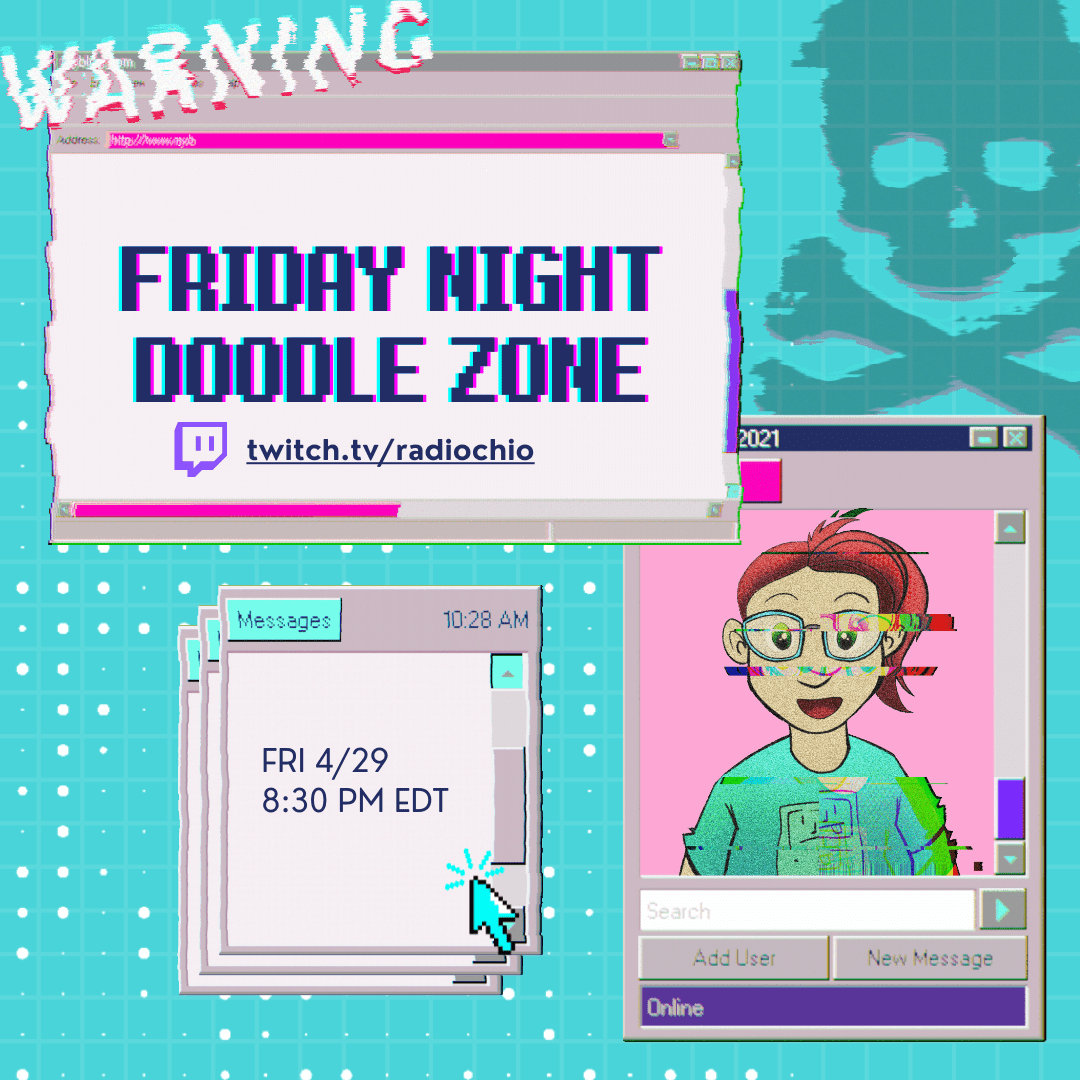
I’m doing another round of the Friday Night Doodle Zone on 4/29 this week! In the last 30 minutes of the stream, I’ll be doing a giveaway for a free sketch to folks who were active in the stream chat via a random draw based on stream activity. In future Doodle Zone giveaways, regular viewers and followers will be twice as likely to win the giveaway!
The Friday Night Doodle Zone is my Friday night stream where I doodle, and you can pay any amount you want for a drawing done live on stream! The more you put in, the longer I’ll spend and the more detailed your drawing request will be!
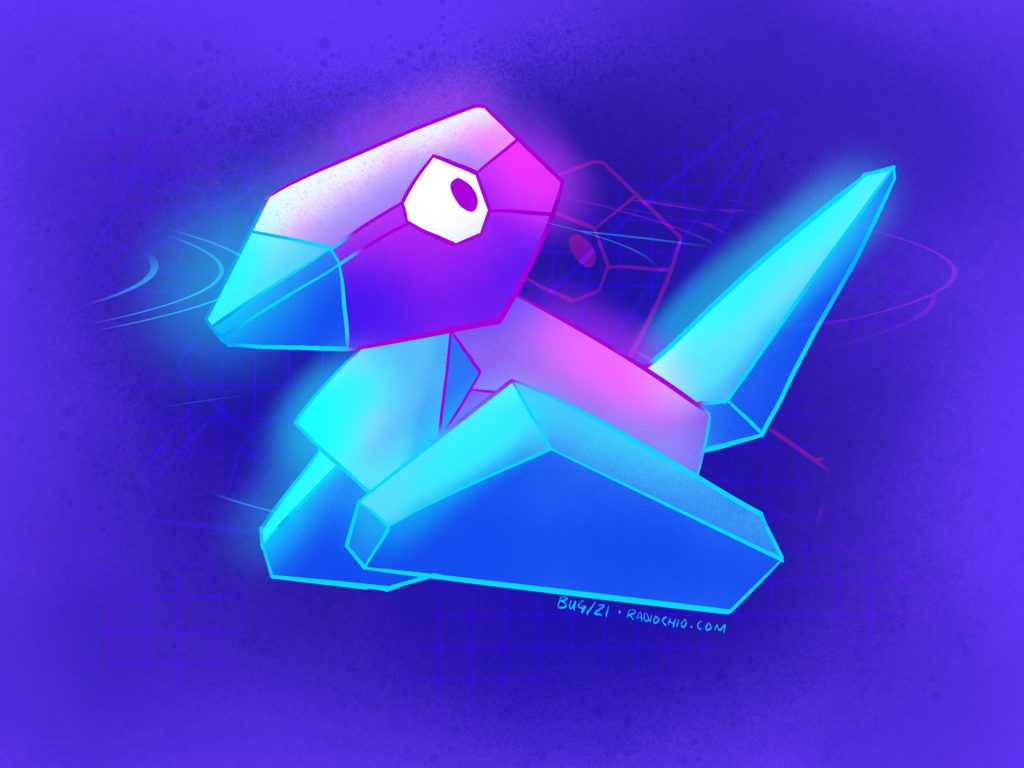
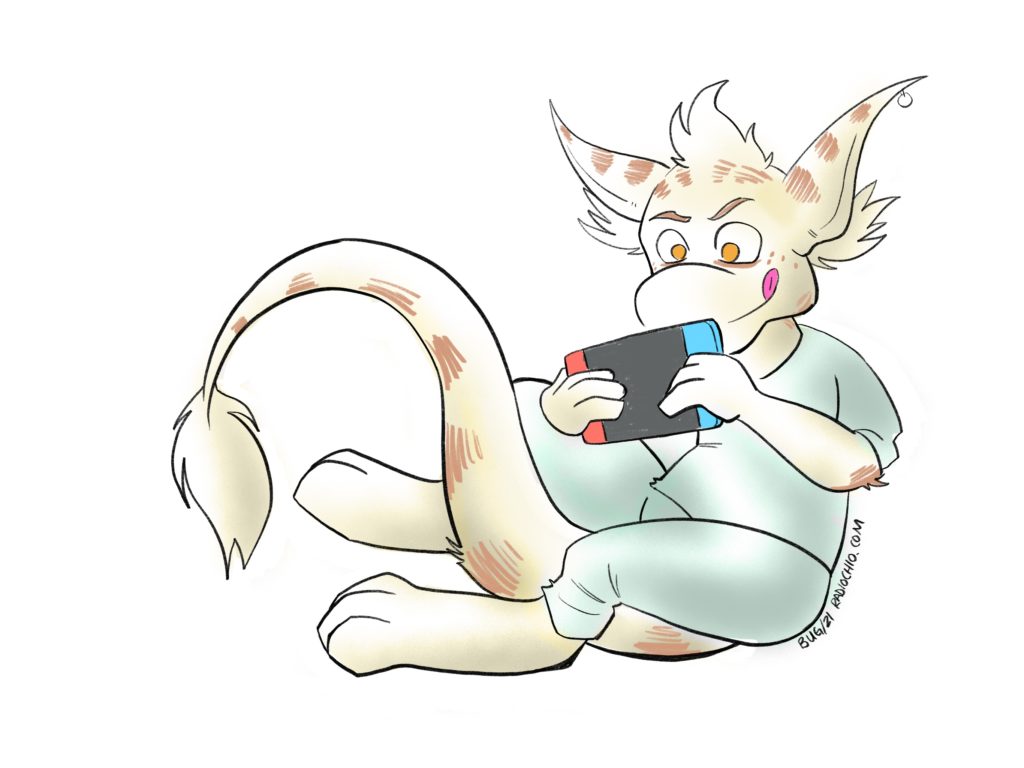
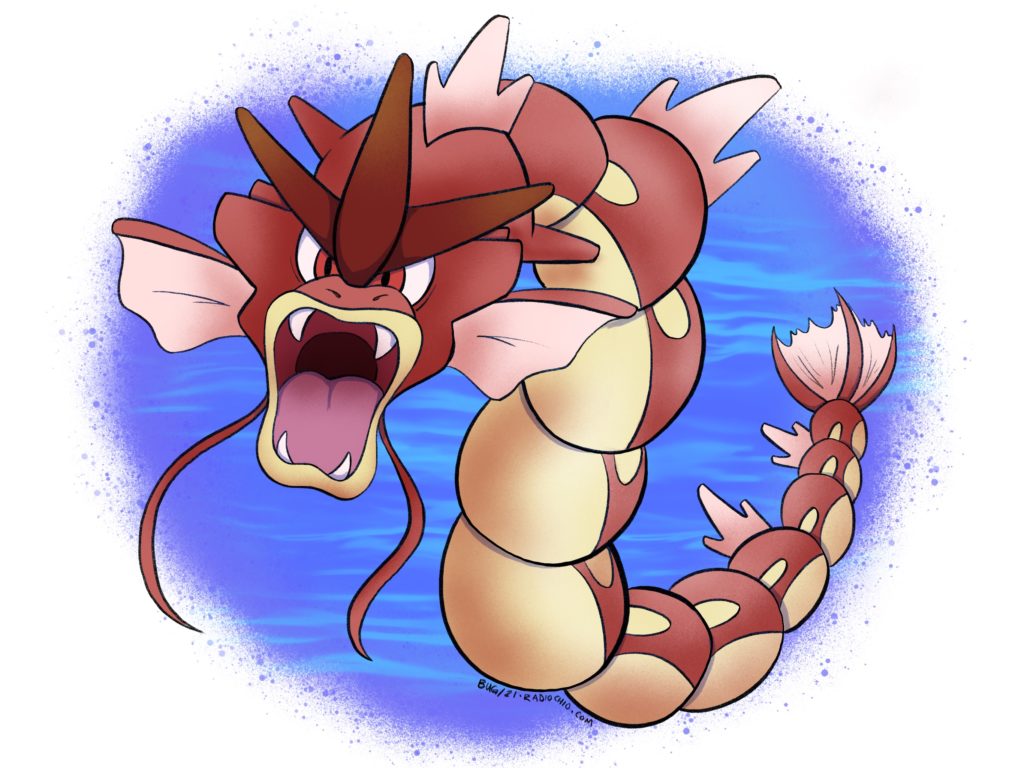
Here are some examples of previous Friday Night Doodle Zone art!
To see the terms and conditions for Doodle Zone streams, check out my commissions page. (It’s just fairly basic terms about what the art you get can be used for, and what I’m willing to draw on stream.
I hope to see you there, whether you’re requesting a drawing or just hanging out in the chat! It’s going to be a fun time!
Follow me on Twitch to get notified anytime I’m streaming!
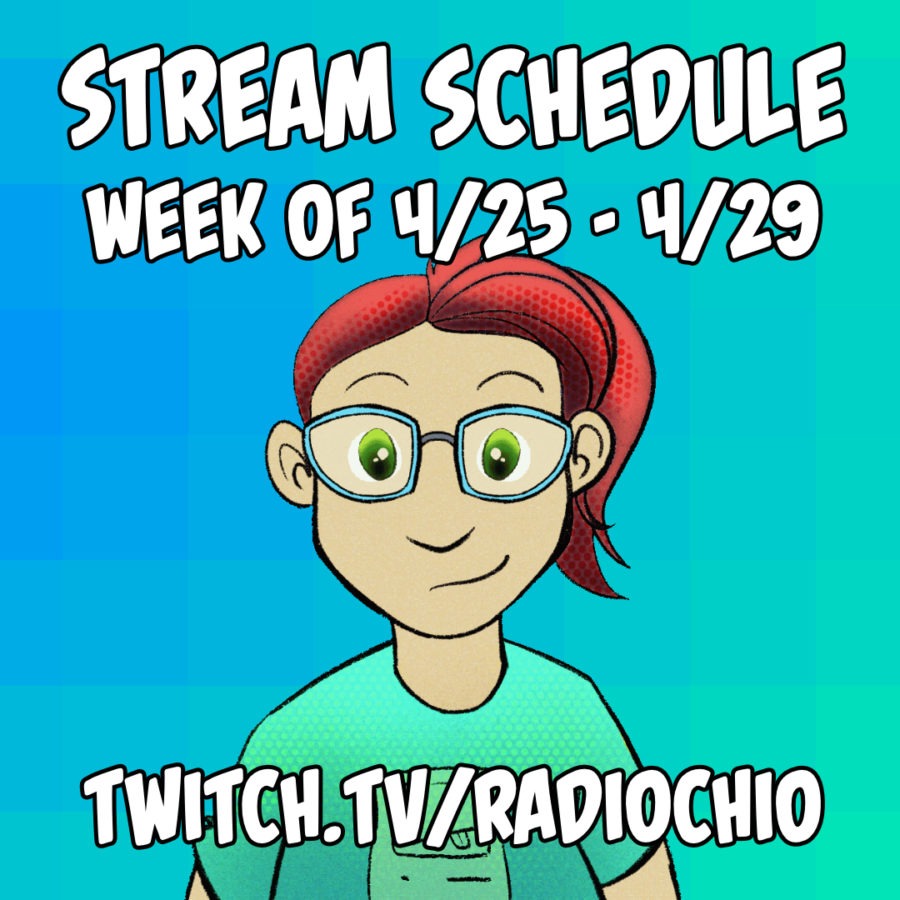
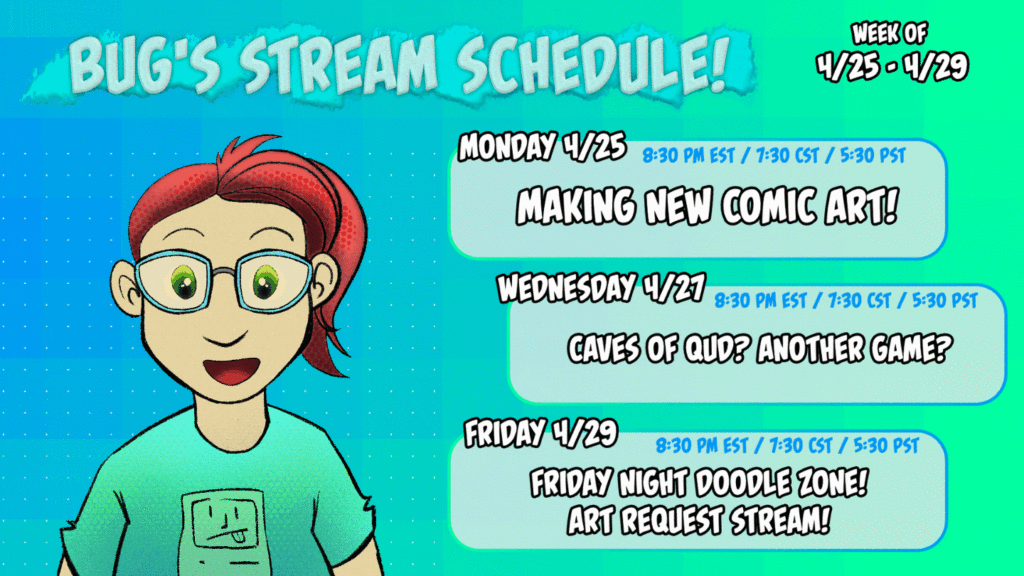
I’m streaming again this week! Here are the dates and times!
MONDAY 4/25: 8:30 PM EST / 7:30 CST / 5:30 PST
Working on new Follower pages and other art! Get a peek at the next comic page before it’s live!
WEDNESDAY 4/27: 8:30 PM EST / 7:30 CST / 5:30 PST
Playing even more Caves of Qud (or potentially another game if the glitches I’ve been having persist…)
FRIDAY 4/29: 8:30 PM EST / 7:30 CST / 5:30 PST
The Friday Night Doodle Zone! This is a pay-what-you-want art request stream! The more you pay, the longer I will spend on your request art and the more detailed it will be! This is extremely fun and can get silly, so come along even if you’re just there to watch!
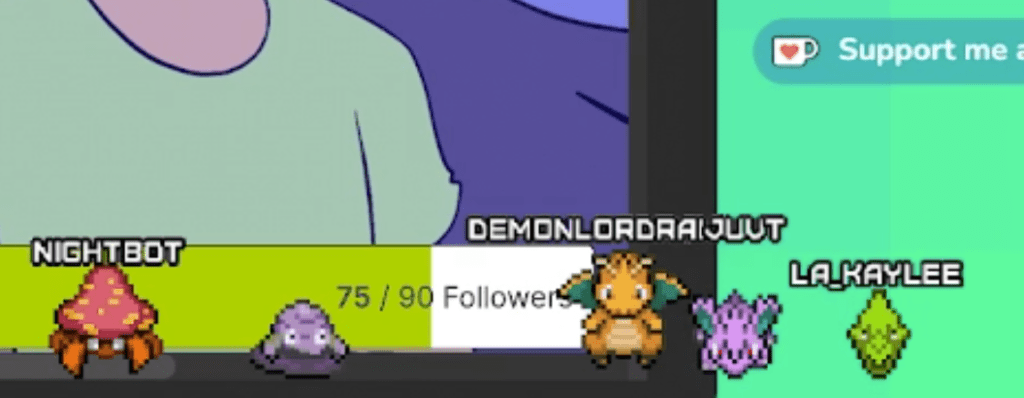
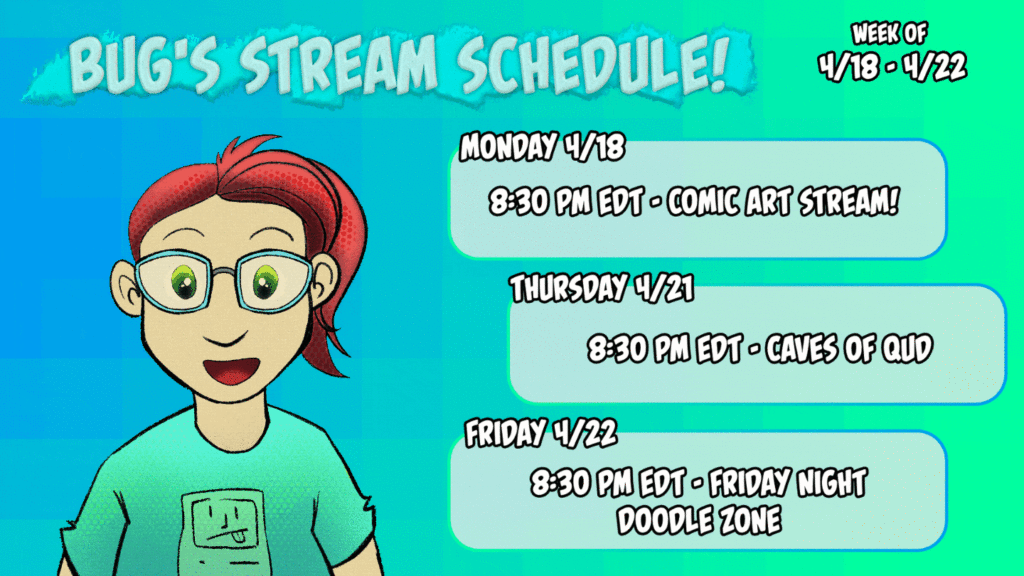
This Friday (4/22/22 – 8:30 PM EDT) I’m once again opening up a portal to the Friday Night Doodle Zone, and you can join me! Follow me on Twitch to come along for the ride while I take pay-what-you-want drawing requests from anyone watching. It’s going to be chill, silly, and lots of fun. You can even be a Pokemon as a member of the chat!
I’m also streaming tomorrow night (4/21/22) and I’m going to be playing Caves of Qud! I just started a new character, Mehla, a watervine farmer with dreams of learning every recipe in the wild apocalyptic world of Qud.
Follow me on Twitch to get notifications when I’m live! I can’t wait to see you there!!
Starting April 3, our itch.io shop prices are going to start melting like snow; everything is 50% off to celebrate the Great Thaw that’s (hopefully?) happening just outside your own door! If you’re looking to pick up some digital copies of Follower or Messenger, this is the time to do it! Hurry: this sale ends 4/16!
Follower is being featured this week by Canvas Support Squad on Twitter! Canvas Support Squad is a group of Webtoon Canvas creators helping each other grow and get more engagement and support! Follower updates on Webtoon Canvas in addition to over on its main site, and we are thrilled to have their support this week!
Check out Canvas Support Squad on Twitter to get notified about cool new comics you might not otherwise see!
Hey #WEBTOON friends! We're a group of #WebtoonCanvas creators committed to helping each other grow: through direct engagement, lasting impact, & the kind of support we love to get from our own audiences! Tune in weekly for how to help & join our movement: https://t.co/E2VqLT0RhJpic.twitter.com/LLBV1VYzaJ
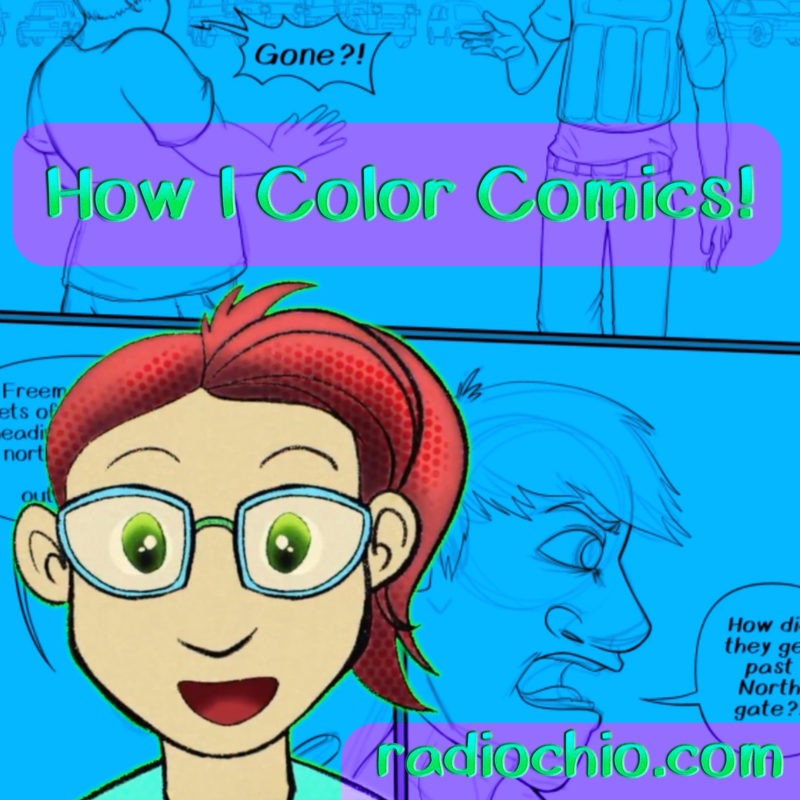
I made a video about how I color comics! Someone asked about this a while ago, and while I lost the original question, I did take the time to record some clips while I worked on the latest Follower page.
Here’s the transcript of this video:
Hey, I’m Bug and I’ve been making webcomics since 2004! Let me share my knowledge with you!
When I’m coloring a comic, my goal is to work as quickly and efficiently as possible, so I’ve found a lot of useful tricks to speed up the process. This is a basic version of how I color.
I color in Clip Studio Paint, but most of these tricks will work in any drawing software.
First, I take my lineart and set it as a reference layer using the little lighthouse button in the layers panel. That means I can color under it, and the fill bucket will act like the lines are on the same layer.
Under the fill bucket’s tool properties window, make sure that “refer multiple” is also checked and set to the lighthouse icon. Play around with the other settings to get a fill style that you like, but here’s what my settings look like.
Now I can use the custom color palette I made for my comic and quickly zip around to fill everything in the panel. Flat colors: done!
Next, I make a new layer above my flat colors. Set this to multiply. Click the icon on the far left of the layers tab that looks like two squares. This will make the multiply layer “clip” to the layer below, so you can only paint where there’s already color.
This is going to be my shading layer. It’s kind of cheating, but I usually pick a shadow color that’s opposite my light color on the color wheel. If that doesn’t look right, I cheat some more and pick something that looks “right.” I use the lasso tool to quickly fill big sections of shadow. The lasso works in combination with the ink layer, so it won’t fill past the lines! Then I use a pen to color in smaller detailed areas of shadow.
Next, make a new layer the same way you made the multiply layer, but instead set the blending mode to overlay, screen, or glow dodge, depending on the effect you want. Pick the color of your light and paint in your highlights.
You can keep adding more layers this way to refine your highlights and shadows, but that’s the simplest version of what I do!
We're reducing our reliance on social media! Get our email newsletters instead!
 Webcomic maker, artist, and Bug of all trades.